
Welcome to the Vim-CtrlSpace plug-in for managing
- your tabs, buffers, files,
- workspaces (sessions),
- bookmarks for your favorite projects
including self-contained fuzzy search in Vim9 and Neovim;
reachable by the default mapping Ctrl + Space:
Pressing <C-Space> opens a window listing
- Buffers,
- Files,
- Tabs,
- Workspaces, or
- Bookmarks
selectable by the j, k, and <CR> keys.
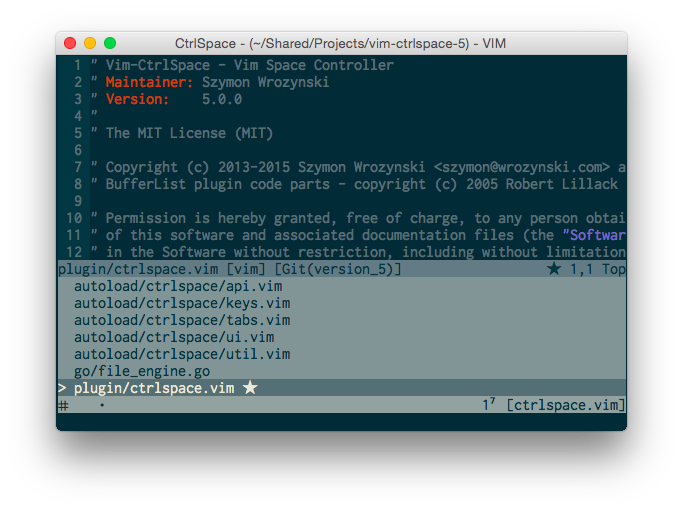
If you have already starred this repo, thank you! If you have a question, a feature request, or a new idea, then don't hesitate to post new issues or pull requests: Collaboration is the most awesome thing in the open source community!
These Lists can be explained with a simple analogy: Imagine Vim is a writing desk.
- The Bookmarks List lists your favorite projects that are like drawers.
- To look up the documents in a drawer you need the File List.
- Once you locate and pick up a file it becomes a buffer. A buffer is like a sheet of paper lying on the desk. Sometimes you can have a blank piece of paper --- that's a new unsaved buffer. Eventually, once saved (put into a drawer), it becomes a file. The Buffer List lets you manage all papers on the desk.
The strongest point of Vim-CtrlSpace is its handling of Tab pages: Each tab holds a separate list of buffers; like a pile of documents on the desk. With tabs you can, for example:
- group related buffers
- extract to other tabs
- name them accordingly
- move or copy them
Tabs can be accessed and managed within Tab List.
All your buffers, tabs, and tab layouts can be persisted as a workspace. It's like taking a picture of your desk with an instant camera. You can save multiple workspaces per project with the Workspace List.
Requires Vim 9.0 or later with +vim9script and matchfuzzypos(), or
Neovim 0.9 or later with matchfuzzypos(). Install this repository only:
no Go toolchain, search executable, or separate fuzzy finder plugin is needed.
If you use vim-plug, then add to your vimrc file (whose path is shown by :help vimrc):
Plug 'vim-ctrlspace/vim-ctrlspace'You can also clone the repository to your vimfiles directory (whose path is shown by :help vimrc):
git clone https://github.com/vim-ctrlspace/vim-ctrlspace.git .First please make sure that you set nocompatible and hidden options,
and set encoding=utf-8 (as required by the plugin) in your .vimrc: >
set nocompatible
set hidden
set encoding=utf-8If you feel brave enough turn off tabline:
set showtabline=0Tabline in Vim has very limited capabilities and as Vim-CtrlSpace makes
use of tabs intensively, tabline would just get in your way. Tab List
(<l>) makes tabline obsolete ;).
Neovim requires adding the following line to your .vimrc or init.vim:
let g:CtrlSpaceDefaultMappingKey = "<C-space> "Note the trailing space at the end of the mapping. Neovim doesn't mind
it, but it makes vim-ctrlspace's "is the mapping left at default" check
fail so it won't change the mapping to <nul>.
Alright! You've hopefully installed, configured Vim-CtrlSpace, and restarted Vim (otherwise do it!). Now you're wondering how to start using this thing.
First, you need to select a project. Vim operates in a directory,
described as CWD (Current Working Directory). If you've just started
a MacVim it's probably pointing to your home directory (issue :pwd to
check it).
I advise you to add a project to the Bookmark List by opening the plugin
window (<C-Space>) and pressing <b>. The plugin will ask for a project
directory.
Make sure that the path is not your home directory. Otherwise the
plugin will start indexing all your files which will be pointless and
resource exhaustive. Be concrete and provide a real path to a project.
Once your bookmark is created, you can go there with <CR>.
Now open some files with <o>. Finally save a workspace with <w> by
providing your first workspace name.
For more information please check out Vim-CtrlSpace help directly in Vim:
:help ctrlspaceFor key reference press <?> inside the plugin window.
If you are used to hitting the <ctrl-P> key combination for fuzzy search, add
this to your .vimrc file:
nnoremap <silent><C-p> :CtrlSpace O<CR>Be sure to remember to refresh your search file list using <r> command.
Ctrl-Space can automatically save your workspace status based on configurations below:
let g:CtrlSpaceLoadLastWorkspaceOnStart = 1
let g:CtrlSpaceSaveWorkspaceOnSwitch = 1
let g:CtrlSpaceSaveWorkspaceOnExit = 1All five CtrlSpace lists use the editor's built-in matchfuzzypos() function.
Vim loads a bundled Vim9 extraction of the matching and highlight conversion
code from fuzzbox.vim. Neovim loads
a native Lua counterpart using vim.fn.matchfuzzypos(). CtrlSpace keeps its
existing list window, keys, tab management, and workspaces; fuzzbox's popup
interface is not loaded. The vendored source and license are recorded in
third_party/fuzzbox.
Queries remain case-insensitive, ordered subsequences, including literal spaces. All candidates are scored before the best 200 are retained; an unfiltered list displays up to 500 items. The best match remains at the bottom. Matched characters are highlighted individually, including multibyte text. Native scoring replaces the former noise algorithm, so ranking can differ from earlier CtrlSpace releases and between editor versions.
Press <?> to see the active engine: Vim9 (fuzzbox) or
Neovim native (Lua). Remove any old g:CtrlSpaceFileEngine setting; the
option is obsolete and ignored. Search no longer detects a CPU architecture,
starts a subprocess, or exchanges a file-engine protocol.
File caching remains independent of search. The cs_files cache, typically
stored under .git/, avoids repeated file collection. Press <r> in the File
List to refresh it. To collect files afresh instead, set:
let g:CtrlSpaceEnableFilesCache = 0File collection can use rg, fd, or ag when installed and falls back to
Vim's built-in globpath(). These optional tools list files; fuzzy matching
always runs inside the editor. See :help ctrlspace-native-search and
:help ctrlspace-engine-specs for details.
Vim-Ctrlspace displays icons in the UI if your font supports UTF8, or ASCII characters as a fallback. Some symbols (glyphs) might not look well with the font you are using, so feel free to change and adjust them.
I use the following symbols of the Inconsolata font in MacVim :
if has("gui_running")
    " Settings for MacVim and Inconsolata font
    let g:CtrlSpaceSymbols = { "File": "◯", "CTab": "▣", "Tabs": "▢" }
endif
Since it's impossible to provide universal character set that would look well on any machine, the fine tuning is left to you.
You can find more about this tuning option in the plugin help:
:help g:CtrlSpaceSymbolsIf you feel that you have found a better symbol for a given view, you are more than welcome to open a pull request.
Another important setting is the Glob command that collects all files in your project directory.
The Glob commands rg, fd and ag respect .gitignore rules (where ag does not support the re-inclusion prefix ! that re-includes files excluded by a previous exclusion pattern) and are faster (in the given order as showed a coarse benchmark on Linux) than that built-in.
They can be used by adding the following lines to vimrc:
if executable('rg')
    let g:CtrlSpaceGlobCommand = 'rg --color=never --files'
elseif executable('fd')
    let g:CtrlSpaceGlobCommand = 'fd --type=file --color=never'
elseif executable('ag')
    let g:CtrlSpaceGlobCommand = 'ag -l --nocolor -g ""'
endifIf your projects have more than 100 000 files, then you can make the file search more responsive by increasing the plugin's fuzzy search delay timing value:
let g:CtrlSpaceSearchTiming = 500Finally, you can adjust some plugin colors. By default plugin uses the following setup:
hi link CtrlSpaceNormal   PMenu
hi link CtrlSpaceSelected PMenuSel
hi link CtrlSpaceSearch   Search
hi link CtrlSpaceStatus   StatusLine
However some color schemes show search results with the same colors as PMenu groups. If that's your case try to link CtrlSpaceSearch highlight group to IncSearch instead:
hi link CtrlSpaceSearch IncSearchOf course nothing prevents you from providing your own highlighting, for example:
hi CtrlSpaceSearch guifg=#cb4b16 guibg=NONE gui=bold ctermfg=9 ctermbg=NONE term=bold cterm=boldIf you use tmux and tmux-resurrect,
you can configure it to save and restore Vim-CtrlSpace workspaces by adding the following lines to your ~/.tmux.conf file (falling back to a Session file if a workspace file is not found, and to just vim or nvim if no workspace files are found):
set -g @plugin 'tmux-plugins/tmux-resurrect'    # save/restore layout
set -g @resurrect-processes '"~vim" -> "if [ -f .git/cs_workspaces ]; then vim +CtrlSpaceLoadWorkspace; elif [ -f .git/Session.vim ]; then vim -S .git/Session.vim; else vim; fi"'
set -g @resurrect-processes '"~nvim" -> "if [ -f .git/cs_workspaces ]; then nvim +CtrlSpaceLoadWorkspace; elif [ -f .git/Session.nvim ]; then nvim -S .git/Session.nvim; else nvim; fi"'
Additionally, to save the workspace continually, add to Vim an autocmd such as
augroup vimrcCtrlSpace
  autocmd!
  autocmd FocusLost,VimLeavePre *
        \ if ctrlspace#workspaces#ActiveWorkspace().Status | call ctrlspace#workspaces#SaveWorkspace("") | endif
augroup END
Run the shared regression suite from the repository root:
tests/run.sh all
# Or select one editor:
tests/run.sh vim
tests/run.sh nvim
Set VIM_BIN and NVIM_BIN to test alternate editor executables. Each run
uses an isolated project and tests both cache modes with no programs on
PATH and an unusable shell. Coverage includes ranking across the full
candidate list, source identities, literal queries, Unicode highlights and
clipping, cache refresh, all five list windows, and opening the selected file.
Copyright © 2013-2020 Szymon Wrozynski and Contributors. Licensed under MIT License conditions.
The bundled fuzzbox matching adapter and its Lua port include code adapted from vim-fuzzbox, copyright 2023, under the MIT license. See the source provenance for the pinned revision and local changes.
Vim-CtrlSpace is inspired by Robert Lillack plugin VIM bufferlist © 2005 Robert Lillack. Moreover some concepts and inspiration has been taken from Vim-Tabber by Jim Steward and Tabline by Matthew Kitt.
Special thanks to Wojtek Ryrych for help and patience ;) and all Contributors.